How I Share My Screen and Stay on Camera
Tip 1 from Ray Franklin, #PresentationCoachRay
The idea
When most people share their screen, their face shrinks to a small thumbnail. Sometimes it disappears.
I don't want to disappear. My audience came to hear from a person, not to read a slide alone.
So I keep my face on screen the whole time. My content sits right beside me.
The layout
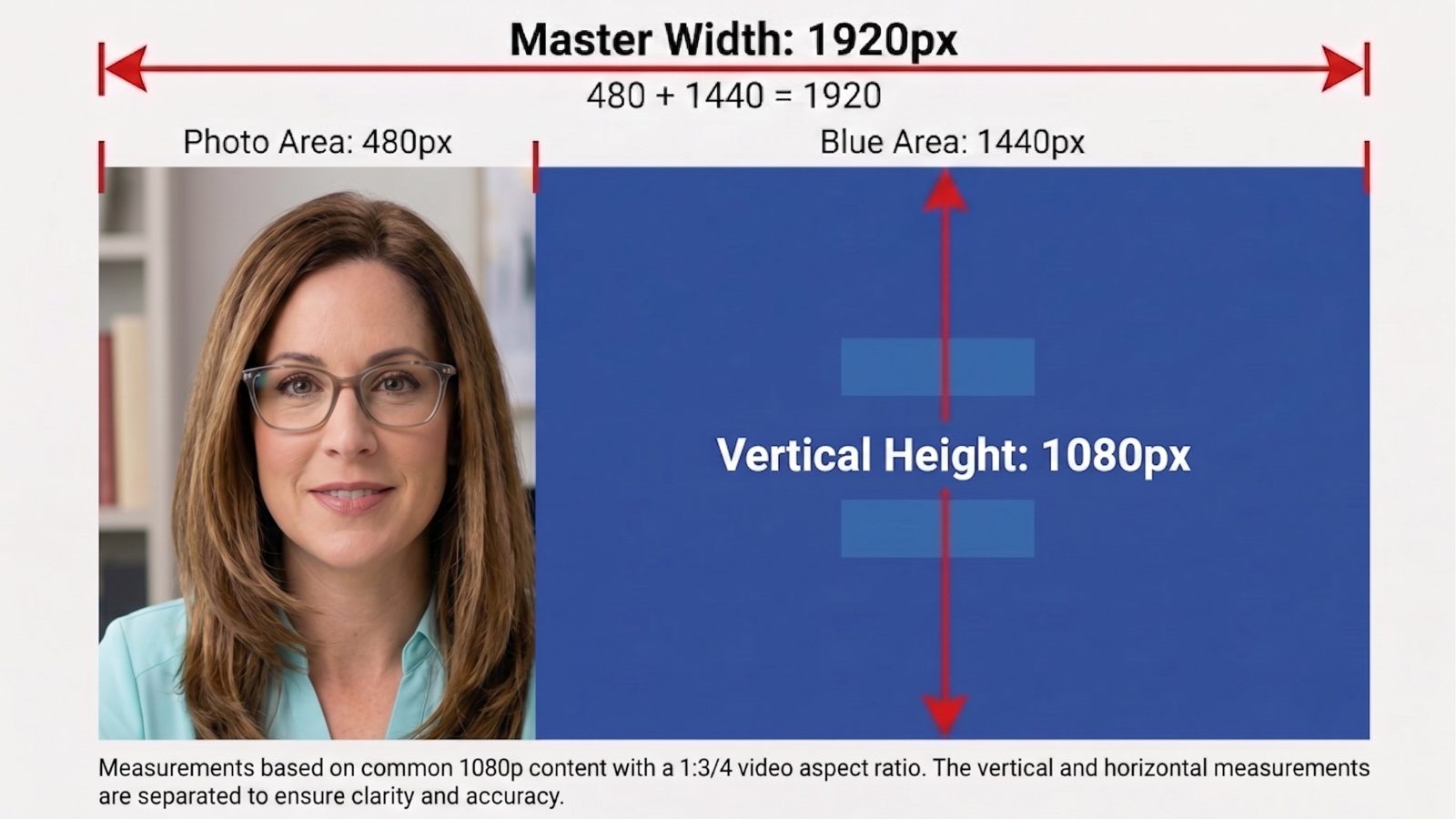
The screen is 1920 by 1080 pixels. I sit in a 480-pixel column on the left, and my content fills the 1440 pixels to the right.
My face stays large enough to read. The content stays large enough to see.
The two free tools
OBS Studio. A free program for Mac and PC. It lets me arrange my camera and my content on one screen. Then it sends that screen into Zoom, Teams, or Meet as if it were my webcam. obsproject.com
MOVE transition, by Exeldro. A free add-on for OBS, also for Mac and PC. It animates the change from one layout to the next. obsproject.com/forum/resources/move.913
What MOVE adds
I start full screen, talking to the lens.
When it's time to show something, I switch layouts. My camera glides into the left column, and my content appears beside me.
Nothing cuts or jumps. My audience keeps looking at me the whole way through.
Tip 2: Graphics that fit beside me
This layout only works if nothing important sits behind my camera. So when I ask AI for a graphic, I ask for a full 16:9 frame with the left quarter left as background. Here is the prompt I use.
Want to know more?
This is how I work. It isn't an OBS course. If you want to know more about how I use it, send me a DM.
Where does your face go when you share your screen?